Dictare Orator · Beta
Look at the camera. Your script follows you.
The Windows teleprompter that moves with your voice, sits next to the camera and keeps its strip out of your screen share.
For Windows 10 and 11. The beta requires approval.
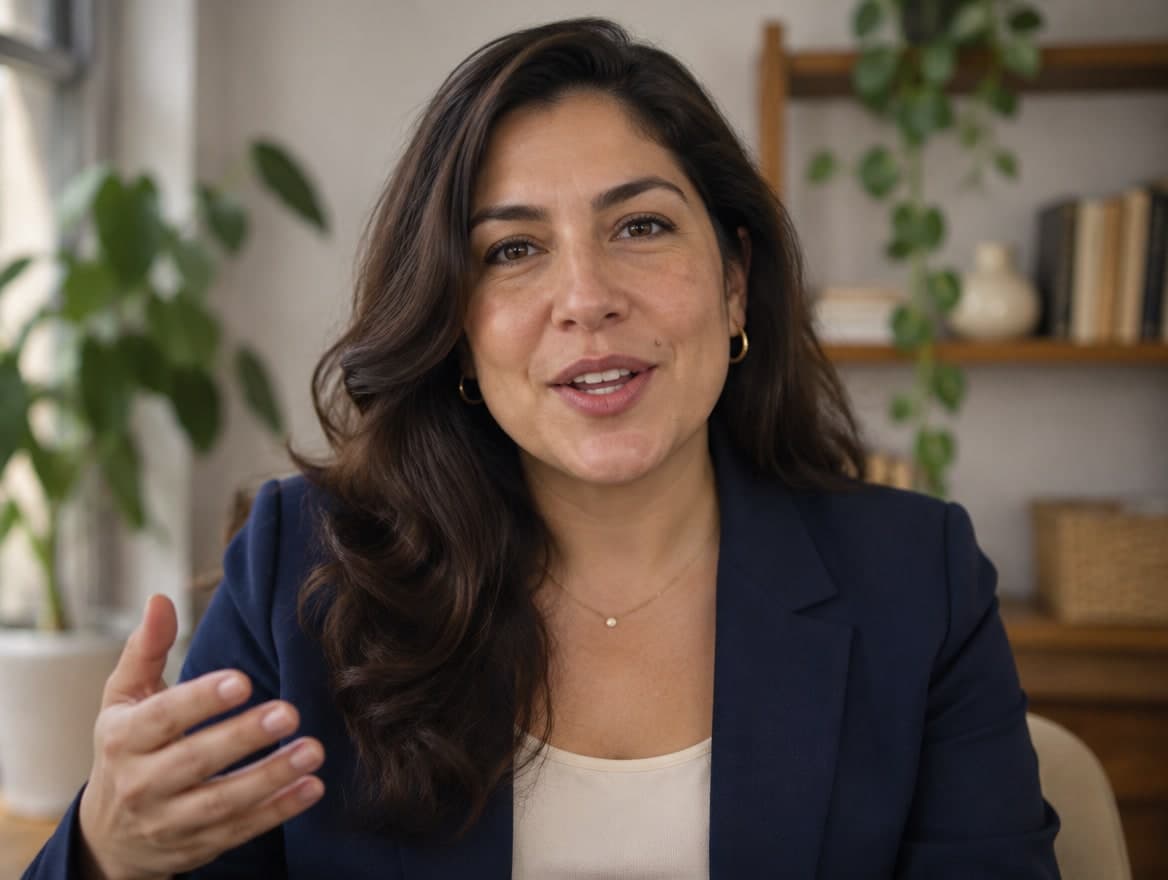
Demo
What you see
Speak at your own pace.
Try it here: scroll or press "Speak" and watch the text move. This is a demo; this site does not use your microphone.
Thank you for being here. Today I'll show you how to close the month in half the time. Closing the month takes us twelve days. With this change, we do it in six. What do you need to see to decide this week?
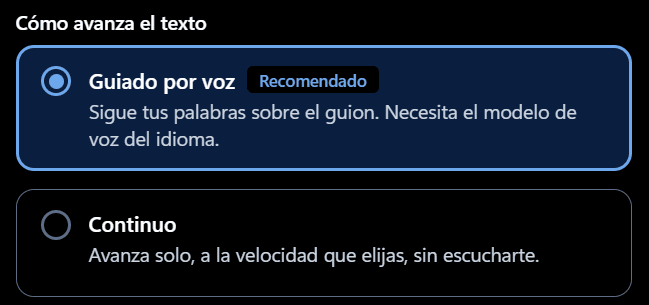
Voice-guided
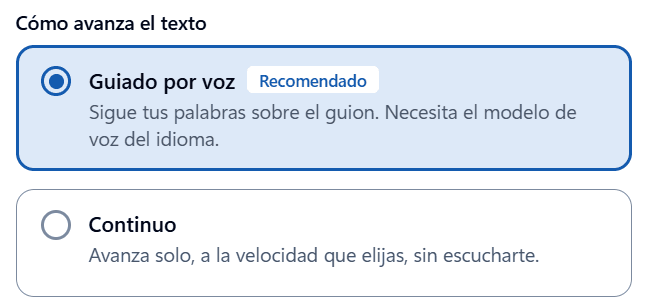
It recognizes your words on your computer and finds them in the script. Stop and it stops. Improvise and it waits. Skip or repeat and it catches up.
Continuous
The text moves at the speed you choose, for when you prefer a steady pace.
You see your script. Your audience doesn't.
The reading strip doesn't show on the screen you share. Tested with screen sharing in Teams, Zoom and Google Meet (Chrome and Edge) on Windows 11.





The protection notice, in the app itself.
What it doesn't cover.
Recordings haven't been tested yet. It doesn't protect against a camera pointed at your screen or software that ignores the system's protection.
From loose ideas to a finished script, on your computer.
- From ideas to script
- Fit to a duration
- Simplify for reading
- Translate between Spanish and English
- Mark pauses and emphasis
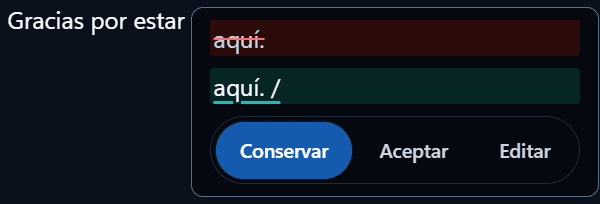
The AI proposes its changes marked next to your original. You accept, discard or edit.
The AI assistant needs 16 GB of RAM.
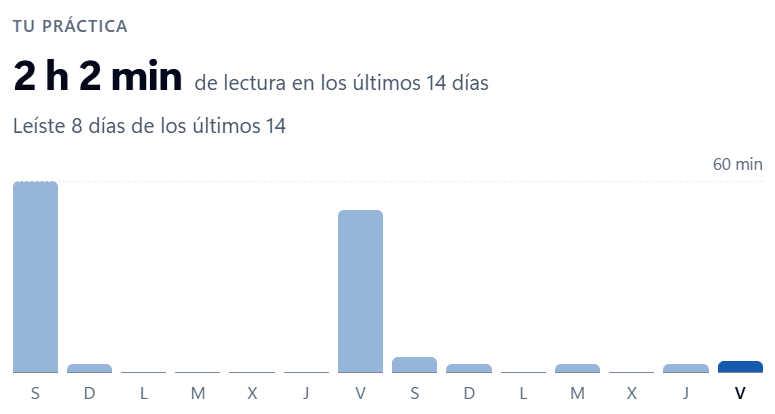
After every rehearsal, suggestions.
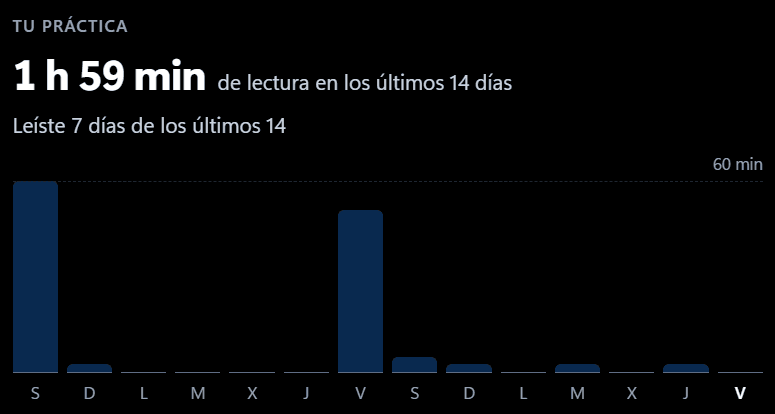
When you finish, you see your pace, your filler words and the parts you skipped.
A profile for every setting.
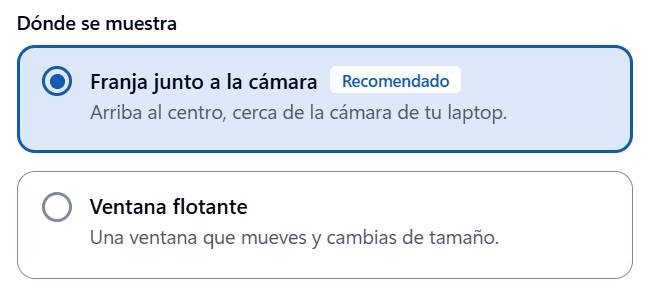
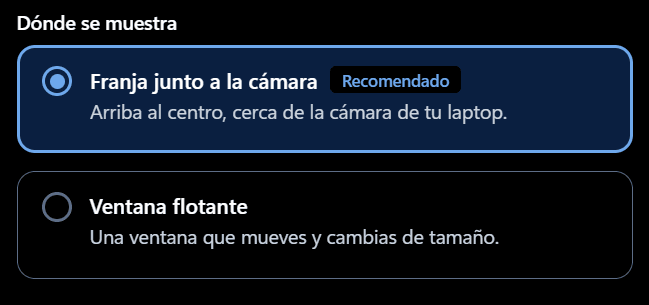
Meeting, Recording and Presentation: each profile remembers its view, text size, speed and microphone. A strip next to the camera or a floating window. Calibration for your pace and your room's noise.
For anyone who speaks in front of a camera.
Sales
Run your demo looking at your client.
Creators
Record at a natural pace, looking at the camera.

Teachers
Look at your students, not at your notes.

Regulated industries
Prepare and read internal material with AI that works on your device.
Your voice and your script stay on your computer.
- Audio is processed in memory and is not stored or sent.
- What does leave: your account and license, update checks and model downloads.
- Statistics and error reports, only if you accept them.
What your computer needs.
- Windows 10 or 11
- A microphone; your laptop's will do
- Internet for your first sign-in and to download the models; after that it works offline
- For the AI assistant: 16 GB of RAM. Without it, the teleprompter still works
- A Dictare account with beta access
Dictare Orator: frequently asked questions
Does my audience see the script when I share my screen?
Not when you share your screen in Teams, Zoom or Google Meet (Chrome and Edge) on Windows 11, where it was tested. Recordings haven't been tested yet. It doesn't protect against a camera pointed at your screen or software that ignores the system's protection.
How does it follow my voice?
It recognizes your words on your computer and finds them in the script. Stop and it stops; improvise and it waits; skip or repeat and it catches up.
Do I need internet?
For your first sign-in and to download the models. After that it works offline.
What computer do I need?
Windows 10 or 11. The teleprompter runs on ordinary computers; the AI assistant needs 16 GB of RAM and, without it, everything else still works.
Does the AI change my script on its own?
No. It shows you its proposal next to the original with the changes marked, and you accept, discard or edit.
Why does Windows show a warning when I install it?
During the beta the installer is not code-signed yet, and Windows warns you about it. The downloads page explains how to continue. Signing arrives before the public launch.
How does it update?
On its own. It downloads the new version in the background, checks its signature and installs it when you close or restart the app.
On how many devices can I use it?
During the beta, on up to 3 devices. In Settings > Account you see your devices and can sign out of any of them.
Look at the camera.
Download Dictare OratorFor Windows 10 and 11. The beta requires approval.